Saturday, January 28, 2012

AMD Catalyst 12.1 Driver on HP Pavilion dv6t-6100 CTO Quad (LM720AV) Hybrid Radeon with Linux Mint 12 / Ubuntu 11.10 Oneiric

I found a way to fully use the powerful AMD/ATI Radeon 6770M Hybrid Graphics Card inside HP Pavilion dv6t Quad Edition in Linux Mint 12 / Ubuntu 11.10 Oneiric. Thanks to the comment by Linux Hybrid Graphics blog!

Right now, I have configured by AMD hybrid graphics laptop to use the Radeon card when on AC power (and get dramatically improved 3D rendering performance), and use the Intel built-in card when on battery power. I'm not sure if I will actually ever need the 3D since I almost never do 3D gaming on Linux, I mainly work as programmer. But the functionality is there and ready. :-)

Here's my steps to get it to work:
  1. First, if you use vgaswitcheroo to switch off the dedicated Radeon graphics card, disable the command in /etc/rc.local by commenting it :
    #echo OFF > /sys/kernel/debug/vgaswitcheroo/switch
  2. Install additional prerequisite packages:
    sudo apt-get install linux-headers-generic dkms
  3. On 64-bit systems, create a symlink from /usr/lib64 to /usr/lib :
    sudo ln -svT lib /usr/lib64
  4. Follow the steps in Installing Catalyst Manually from AMD/ATI Website.
    In AMD/ATI Catalyst Linux Driver download page, make sure to download new AMD Catalyst Linux Driver version 12.1 (aka 8.930) or newer
  5. Use the Intel i915 VAAPI driver to get hardware accelerated decoding when playing videos using VLC, to install:
    sudo apt-get install i965-va-driver
  6. If you mess up the system, follow instructions in ATI driver re-install fail.
After reboot, your laptop should work just fine.
I have several minor issues (not a blocker by any means):
  • I still experience video tearing, even after I do:
    sudo aticonfig --sync-video=on
    and turned VSync sldier to Always On in AMD Catalyst Center.
    Maybe it's because I need to do this configuration on the Intel card?
  • KDE 4.8.0 multi-monitor setup is acting weird on the Radeon card only. It does detect multiple monitors, and can configure the resolution, position, etc. but doesn't detect that it is using multiple monitors, i.e. maximizing/full-screen-ing windows make it fill the whole desktop, not just one screen.
    This is a bit annoying as I watch movies a lot on a 32" HDMI LCD TV but still want to browse or do other stuff on the laptop while watching.

    KDE 4.8 multi-monitor setup works flawlessly when the Intel card is active.
I'll give an update when I've got more news on them...

Find tips to optimize your Ubuntu 11.10 in Ubuntu Unleashed 2012 Edition: Covering 11.10 and 12.04 (7th Edition) !

Tuesday, December 6, 2011

How to Fix GNOME 3 Shell Screen Blanking / Monitor Turned Off in Ubuntu 11.10 Oneiric / Linux Mint 12

In my AMD/ATI Radeon-powered HP dv6t Quad Edition notebook, sometimes the screen is blank or the LCD monitor turned off and it cannot turn itself on again.
This did not happen in GNOME 2 / Ubuntu 10.04 Natty / Linux Mint 11, and happens only after I upgraded to GNOME 3 / GNOME Shell / Ubuntu 11.10 Oneiric / Linux Mint 12.
To solve this problem when the screen is blank:
  1. Press Ctrl+Alt+F1 (to go to the console).
  2. Close the laptop lid.
  3. Reopen the laptop lid.
  4. You should be able to see the Linux console. Enter your username and password to login.
  5. Type:export DISPLAY=:0
    xset dpms force on
    ( Note : if you type "xset q" right after the "export" command, you'll notice that "Monitor is Off", which is both strange and scary )
  6. Press Ctrl+F7 to go back to your desktop.
Note that you may need to change your Power Settings, so that it will do nothing when the laptop lid is closed.
You may also want to configure your Screen Settings to disable turning off the screen.
I have not yet found a more permanent, properly working solution. So right now the above is a temporary hack that works.
You can learn more about Ubuntu and Linux Mint in Ubuntu Unleashed 2011 Edition: Covering 10.10 and 11.04 (6th Edition) !

Thursday, December 1, 2011

How to Fix Error: bash: warning: setlocale: LC_CTYPE: cannot change locale (id_ID.UTF-8) in Ubuntu 11.04 / Linux Mint 12

If you get error/warning message similar to this when press Tab for bash command autocompletion :

bash: warning: setlocale: LC_CTYPE: cannot change locale (id_ID.UTF-8)

Solution is:
  1. Install the required locale. In my case this is the "id" :

    sudo apt-get install language-pack-id

  2. Reconfigure locales:

    sudo dpkg-reconfigure locales

Now bash Tab completion should work just fine. :-)

You can learn more about Ubuntu and Linux Mint in Ubuntu Unleashed 2011 Edition: Covering 10.10 and 11.04 (6th Edition) !

Wednesday, November 30, 2011

How to Restore Notebook Synaptics/Touchpad Not Working in Ubuntu 11.10 Oneiric / Linux Mint 12 Lisa

Sometimes the desktop in several Linux distributions freezes for no apparent reason; active windows can still be used, and the mouse pointer can be moved around, but clicking is impossible. Furthermore, your touchpad can no longer be controlled; the ‘Touchpad’ tab disappears from the System / Preferences / Mouse menu. Even if mouse functionality eventually returns, the touchpad remains uncontrollable. This extremely annoying bug occurs randomly and may last for a couple of seconds, or until you restart your X server.

I am facing this problem on a HP Pavilion dv6 Quad Core Edition on Linux Mint 12 Lisa 64-bit.

If you check your system’s log after such an event (/var/log/messages) you will notice a few entries similar to these:

Sep  9 09:38:15 umbra kernel: [ 4939.006198] psmouse.c: DualPoint TouchPad at isa0060/serio1/input0 lost sync at byte 1
Sep  9 09:38:15 umbra kernel: [ 4939.012220] psmouse.c: DualPoint TouchPad at isa0060/serio1/input0 - driver resynched.

Basically this indicates an IRQ conflict between your mouse and your touchpad. This is a Linux kernel bug (I am currently using 2.6.28) and as such it affects most distributions. An easy way to recover both mouse and touchpad functionality without having to restart your X server is restarting the mouse driver. Run the following commands on a terminal window:

sudo rmmod psmouse
sudo modprobe psmouse

If there is no terminal window open, you can use one of the following:

  • In Gnome or KDE, press Alt + F2, type gnome-terminal and press Enter
  • Press Control + Alt + F1, login with your username and password, type the commands, then press Control + Alt + F7 to get back to X

Hopefully a future kernel release will fix this problem for good.

You can learn more about Ubuntu in Ubuntu Unleashed 2011 Edition: Covering 10.10 and 11.04 (6th Edition) !

Source: http://xpapad.wordpress.com/2009/09/09/dealing-with-mouse-and-touchpad-freezes-in-linux/

Monday, October 17, 2011

Ubuntu 11.10 (Oneiric Ocelot) Linux distro Released

"There is nothing like a dream to create the future." - Victor Hugo

The Ubuntu team is pleased to announce Ubuntu 11.10, code-named "Oneiric Ocelot". 11.10 continues Ubuntu's proud tradition of integrating the latest and greatest open source technologies into a high-quality, easy-to-use Linux distribution.

For PC users, Ubuntu 11.10 supports laptops, desktops and netbooks with a unified look and feel based on an updated version of the desktop shell called "Unity", which introduces specialized "Lenses". Finding and installing software using the Ubuntu Software Centre is now easier thanks to improvements in speed, search functionality enhancements, and usability improvements. Aside from updates on the performance side, it's also more aesthetically appealing.

Ubuntu Server 11.10 has made it much easier to provision, deploy, host, manage, and orchestrate enterprise data centre infrastructure  services with the introduction of "Orchestra".  The Juju technical preview allows service developers to describe the deployment and  scaling requirements of their applications, in order to simplify  and enhance the dialogue between developers and operations teams. For those working on the ARM architecture, a technical preview is  also provided for the ARM server.

Read more about the new features of Ubuntu 11.10 in the following press releases:

  http://www.canonical.com/content/transforming-home-pc-ubuntu-1110
  http://www.canonical.com/content/client-cloud-ubuntu-1110-sets-pace-business-it


Standard maintenance updates will be provided for Ubuntu 11.10 for  18 months, through April 2013.

Thanks to the efforts of the global translation community, Ubuntu is now available in 38 languages.  For a list of available languages  and detailed translation statistics for these and other languages, see:

  http://people.canonical.com/~dpm/stats/ubuntu-11.10-translation-stats.html


Ubuntu 11.10 is the base for the newest 11.10 iterations of Kubuntu, Xubuntu, Edubuntu, Mythbuntu, Ubuntu Studio, and our newest addition  to this release cycle, Lubuntu!

Kubuntu:       http://kubuntu.org/news/11.10-release
Xubuntu:       http://xubuntu.org/news/11.10-release
Edubuntu       http://edubuntu.org/news/11.10-release
Mythbuntu:     http://mythbuntu.org/11.10/release
Ubuntu Studio: https://wiki.ubuntu.com/UbuntuStudio/11.10release_notes
Lubuntu:       https://wiki.ubuntu.com/Lubuntu/Announcement/11.10


Ubuntu 11.10 is also now available on two new ARM community-supported ports.
AC100 (Toshiba Tegra 2 Netbook): https://wiki.ubuntu.com/ARM/TEGRA/AC100
MX5
(Freescale i.MX53 QuickStart): https://wiki.ubuntu.com/ARM/MX5


To get Ubuntu 11.10

In order to download Ubuntu 11.10, visit:

 http://www.ubuntu.com/download/ubuntu/download


Users of Ubuntu 11.04 will be offered an automatic upgrade to 11.10 via Update Manager. For further information about upgrading, see:

 http://www.ubuntu.com/download/ubuntu/upgrade


As always, upgrades to the latest version of Ubuntu are entirely free of charge.

We recommend that all users read the release notes, which document caveats, workarounds for known issues, as well as more in-depth notes on the release itself. They are available at:

 http://www.ubuntu.com/getubuntu/releasenotes


Find out what's new in this release with a graphical overview:

 http://www.ubuntu.com/ubuntu/whats-new
 http://www.ubuntu.com/ubuntu/features


If you have a question, or if you think you may have found a bug but aren't sure, you can try asking in any of the following places:

 #ubuntu on irc.freenode.net
 http://lists.ubuntu.com/mailman/listinfo/ubuntu-users
 http://www.ubuntuforums.org/
 http://askubuntu.com/


Help Shape Ubuntu

If you would like to help shape Ubuntu, take a look at the list of ways you can participate at:

 http://www.ubuntu.com/community/participate/


About Ubuntu

Ubuntu is a full-featured Linux distribution for desktops, laptops, netbooks and servers, with a fast and easy installation and regular releases.  A tightly-integrated selection of excellent applications is included, and an incredible variety of add-on software is just a  few clicks away.

Professional services including support are available from Canonical and hundreds of other companies around the world.  For more information about support, visit:

 http://www.ubuntu.com/support

Kate Stewart,
on behalf of the Ubuntu Release Team

More Information

You can learn more about Ubuntu in Ubuntu Unleashed 2011 Edition: Covering 10.10 and 11.04 (6th Edition) !

Sunday, October 9, 2011

How to Fix Adjust Screen Backlight of HP dv6t Quad Core Edition with ATI/AMD Radeon HD in Ubuntu/Linux Mint 11.04

Hp-dv6t-quad-core-edition-ati-
If you're looking to fix LCD screen backlight adjustment controls in HP dv6t Quad Core Edition notebook with Intel Core i7 2630QM and powered by ATI/AMD Radeon HD 6770M Switchable/Hybrid Graphics Card, here's the tutorial for you.


For a few problems, I have posted solutions on how to run Ubuntu / Linux Mint 11.04 on HP dv6t Quad Core Edition with ATI/AMD Radeon HD 6770M Switchable Graphics Card.
To fix adjusting monitor/screen backlight functionality with Fn/action keys, follow these steps:
1. Add the Kamal PPA repository that contains patched Linux kernel and gnome-power-manager :
sudo add-apt-repository ppa:kamalmostafa/linux-kamal-mjgbacklight
2. Upgrade your packages (especially linux-* and gnome-power-manager packages)
sudo apt-get update
sudo apt-get upgrade
3. Edit the GRUB2 boot parameters in /etc/default/grub to add acpi_vendor=backlight , as follows:
GRUB_CMDLINE_LINUX_DEFAULT="splash acpi_backlight=vendor"
GRUB_CMDLINE_LINUX="acpi_backlight=vendor"
4. Update GRUB configuration:
sudo update-grub
Reboot Ubuntu / Linux and you should have LCD monitor screen backlight adjustment fully working!
I am now very happy with this HP dv6t Quad notebook! Very powerful, good battery life, cool-looking, and runs Linux quite flawlessly :-)
Find tips to optimize your Ubuntu 11.04 in Ubuntu Unleashed 2011 Edition: Covering 10.10 and 11.04 (6th Edition) !

How to Run Ubuntu / Linux Mint 11.04 on HP dv6t Quad Core Edition with ATI/AMD Radeon HD 6770M Switchable Graphics

Hp-dv6t-quad-core-edition-ati-

I just upgraded my notebook to a HP dv6t Quad Core Edition (September 2011) with Intel Core i7 2630QM and powered by ATI/AMD Radeon HD 6770M Switchable/Hybrid Graphics Card.

Running Ubuntu / Linux Mint 11.04 64-bit on it has a few problems like:

  • cannot boot Live CD / Live USB installer
  • crash / kernel panic during boot / stack trace regarding radeon module
  • cannot control screen backlight
  • screen is blank (completely dark black)
  • CPU / VGA / graphics / notebook fans are always on
  • power usage is high / sucking up battery / battery life is short
Fortunately, there are solutions and I will post how to solve them in this article series.

First of all please check your BIOS (press F10 during boot) to see if there's a switch for Switchable Graphics to Fixed/Dynamic. Or check if you have BIOS version F.1A or later.

If so then the switch feature should be there.

If not then I suggest upgrading to the latest BIOS from HP website. Please contact HP for further information as I cannot provide support on this.

Which mode should you pick? In my experience either Fixed or Dynamic works fine, what matters most is blacklisting radeon kernel module/driver.

To launch the Ubuntu 11.04 / Linux Mint 11 (Katya) Live CD / Live USB installer properly, at the GRUB2 boot choices screen press "e" or <Tab> (if you use unetbootin) to edit the GRUB2 boot command as follows:

  • remove : splash quiet
  • add (before "--") : radeon.modeset=0 rdblacklist=radeon xdriver=i915
I haven't tested which exact switches actually make the difference. If installer still hangs / crashes / blank screen, go to the BIOS and switch from Fixed to Dynamic and vice versa, then try again.

If you already installed Ubuntu / Linux Mint, follow these steps to blacklist radeon kernel module driver:
  1. Boot using Recovery choice (when prompted by GRUB2), or use Live CD / Live USB installer
  2. As root, create file /etc/modprobe.d/blacklist-radeon.conf with the following contents:blacklist radeon
  3. Save the file and reboot.
Now you should be able to boot into Linux GUI / GNOME / X Server properly with the Intel Graphics card driver.

However even though you are using Intel graphics, the AMD/ATI Radeon HD 6770M graphics card is still powered on, consuming precious battery life.

To power off ATI Radeon HD card, as root, edit the file /etc/rc.local and append (before "exit 0") :

echo OFF > /sys/kernel/debug/vgaswitcheroo/switch

Save the file and reboot. Now you should have better battery life.
To check the Intel / ATI switchable graphics power state you can use:

$ sudo cat /sys/kernel/debug/vgaswitcheroo/switch
0:IGD:+:Pwr:0000:00:02.0
1:DIS: :Off:0000:01:00.0

The "1:DIS: :Off" means the discrete graphics (ATI Radeon HD) is powered off, so it's deactivated and not consuming any power.

Right now pretty much everything (except the ATI Radeon HD graphics card, which I'm not interested in activating right now) is working on my notebook/laptop.

Next what we can also fix screen / backlight display brightness setting not working. Watch this space for updates. :-) UPDATE: Solution found!

Find tips to optimize your Ubuntu 11.04 in Ubuntu Unleashed 2011 Edition: Covering 10.10 and 11.04 (6th Edition) !

Tuesday, June 21, 2011

Firefox 5.0 Final Web Browser for Linux/Ubuntu Released


Ladies and gentlemen, a few minutes ago (June 20th) Mozilla unleashed the stable version of the highly anticipated Mozilla Firefox 5.0 web browser for Linux, Windows and Macintosh operating systems.

Yes! The final version of Firefox 5 is finally here, and it brings support for CSS animations, which will lead to amazing Web experiences. It also brings Location-Aware Browsing, channel switcher, performance and stability enhancements, and much more.

Mozilla Firefox 5.0 is supported on both 32-bit and 64-bit architectures, which means that it will run on any Linux distribution. However, Ubuntu 11.04 users will get a Firefox update on the official channels, very soon. Power up your Ubuntu 11.04 with Ubuntu Unleashed 2011 Edition: Covering 10.10 and 11.04 (6th Edition).

Mozilla Firefox 4.0 will no longer be updated, it will be replaced by the new Firefox 5.0, which in time will become Firefox 6, Firefox 7, and so on.

Highlights of Mozilla Firefox 5.0:

· Firefox channel switcher;
· Location-Aware Browsing;
· Support for CSS animations;
· Increased discoverability by using the Do-Not-Track header preference;
· Improved canvas;
· Improved JavaScript;
· Improved memory usage;
· Improved networking performance;
· Better spell checking;
· Better desktop environment integration;
· Better standards support for HTML5, MathML, SMIL, canvas, and XHR;
· Improved performance for background tabs;
· Overall performance and stability enhancements.

These are just a few of the nice features that Mozilla Firefox 5.0 will bring on your desktop. If you want to learn more about the new additions, changes from previous versions and other improvements, do not hesitate to visit the official Firefox 5.0 website.

We've tested the new Mozilla Firefox 5.0 web browser on the Ubuntu 11.04 (Natty Narwhal) operating system.
Find tips to optimize your Ubuntu 11.04 in Ubuntu Unleashed 2011 Edition: Covering 10.10 and 11.04 (6th Edition) !

What are you waiting for? Grab Mozilla Firefox 5.0 binaries for Linux (32-bit and 64-bit) right now from Softpedia. Oh, and don't forget to visit our always up-to-date Firefox Extensions section for the latest add-ons!

Source: Softpedia

Thursday, May 26, 2011

Linux Mint 11 "Katya" Ubuntu-based OS released

The Linux Mint development team has announced the release of version 11 of Linux Mint – the project's latest major release of its Ubuntu-based Linux distribution. Code-named "Katya", Linux Mint 11 is based on Ubuntu 11.04 "Natty Narwhal" and includes the 2.6.38 Linux kernelLinux 2.6.39 was released one week ago.

I highly recommend Ubuntu Unleashed 2011 Edition: Covering 10.10 and 11.04 (6th Edition) for learning more about Linux Mint and Ubuntu.

Linux Mint Logo

Unlike the latest version of Ubuntu upon which it is based, the distribution features the GNOME 2.32 desktop environment, as well as the traditional Linux Mint desktop layout – Ubuntu uses Unity, developed in-house by the Ubuntu developers, as its default desktop. In an email, Linux Mint Founder and lead developer Clement Lefebvre previously told The H that the developers initially wanted to use GNOME 3, however, "With GNOME 2 we could rely on one of the most stable desktops available, full compatibility with GTK (on which most applications including our own tools are developed) and our current themes."


Linux Mint 11 features the GNOME 2.32 desktop environment, as well as the traditional Linux Mint desktop layout.

Other changes include a faster update manager with several user interface improvements, updates to the desktop settings tool, and a "much more polished" software manager. Software selection updates include replacing OpenOffice.org with the LibreOffice office suite, Banshee becoming the default music player and gThumb replacing F-Spot as the default photo application – Gwibber is no longer being installed by default.

Highlights of Linux Mint 11 :

  • Based on Ubuntu 11.04
  • Linux kernel 2.6.38
  • No Unity shell
  • GNOME 2.32.1
  • One-click installer for multimedia codecs and extra apps
  • Lots of improvements to The Software Manager tool
  • Performance improvements to The Update Manager tool
  • Various improvements to The Desktop Settings tool
  • A new set of wallpapers
  • mint-search-addon for Firefox 4, Chrome and Opera web browsers
  • Removed Gwibber
  • gThumb as default photo viewer
  • Banshee as default music player
  • LibreOffice 3.3 office suite
  • Overlay scrollbars
  • Updated Mint-X theme
  • Added 'apt download' command
  • Adobe Flash Player 10.2 plugin
  • Lots of bug fixes

More details about the release, including a list of known problems, can be found in a post on the Linux Mint Blog, in the release notes and on the New features in Linux Mint 11 page. Linux Mint 11 is available to download as a CD or DVD ISO image file for 32- and 64-bit systems from the project's site. A user guide and upgrade instructions are provided. The OEM Edition provides the same features as the standard version, but without including proprietary software, patented technologies or support for restricted formats.

Linux Mint aims to be user friendly and to provide a more complete out-of-the-box experience by including support for DVD playback, Java, plug-ins and various media codecs. It is currently the second most popular distribution on DistroWatch.com behind Ubuntu.

To learn more about Linux Mint and Ubuntu, the book Ubuntu Unleashed 2011 Edition: Covering 10.10 and 11.04 (6th Edition) is highly recommended.

(Article copied mostly verbatim from H Online announcement.)

Thursday, April 28, 2011

Ubuntu 11.04 "Natty Narwhal" Linux OS Released

"Form and function are a unity, two sides of one coin. In order to enhance function, appropriate form must exist or be created."
   -Ida P. Rolf

The Ubuntu team is pleased to announce Ubuntu 11.04, code-named "Natty Narwhal". 11.04 continues Ubuntu's proud tradition of integrating the latest and greatest open source technologies into a high-quality, easy-to-use Linux distribution.

To learn more about Ubuntu, check out Beginning Ubuntu Linux book from Apress.

For PC users, Ubuntu 11.04 supports laptops, desktops and netbooks with a unified look and feel based on a new desktop shell called "Unity". This version supersedes Ubuntu Netbook Edition for all PC netbooks.

Developer reference images are provided for select Texas Instruments (TI) ARM platforms, specifically the "PandaBoard" and "BeagleBoard".

Ubuntu Server 11.04 has made it easier to provision servers, and reduce power consumption.   Ubuntu Server 11.04 for UEC and EC2 has a new kernel and improved initialization and configuration options.

Read more about the features of Ubuntu 11.04 in the following press releases:

 http://www.canonical.com/content/ubuntu-transforms-your-pc-experience
 http://www.canonical.com/content/latest-ubuntu-offers-business-added-cloud-features-and-sleek-new-desktop-interface

 Standard maintenance updates will be provided for Ubuntu 11.04 for 18 months, through October 2012.

Thanks to the efforts of the global translation community, Ubuntu is available in 43 languages.  For a list of available languages and detailed translation statistics for these and other languages, see:

 http://people.canonical.com/~dpm/stats/ubuntu-11.04-translation-stats.html

Ubuntu 11.04 is also the basis for new 11.04 releases of Kubuntu, Xubuntu, Edubuntu, UbuntuStudio, and Mythbuntu:

       Kubuntu  http://kubuntu.org/news/11.04-release
       Xubuntu  http://xubuntu.org/news/11.04-release
      Edubuntu  http://edubuntu.org/news/11.04-release
     Mythbuntu  http://mythbuntu.org/11.04/release
 Ubuntu Studio  https://wiki.ubuntu.com/UbuntuStudio/11.04release_notes

To Get Ubuntu 11.04

To download Ubuntu 11.04, or obtain CDs, visit:

 http://www.ubuntu.com/download/ubuntu/download

Users of Ubuntu 10.10 will be offered an automatic upgrade to 11.04 via Update Manager. For further information about upgrading, see:

 http://www.ubuntu.com/download/ubuntu/upgrade

As always, upgrades to the latest version of Ubuntu are entirely free of charge.

We recommend that all users read the release notes, which document caveats and workarounds for known issues.  They are available at:

 http://www.ubuntu.com/getubuntu/releasenotes

 Find out what's new in this release with a graphical overview:

 http://www.ubuntu.com/ubuntu/whats-new
 http://www.ubuntu.com/ubuntu/features

If you have a question, or if you think you may have found a bug but aren't sure, you can try asking in any of the following places:

 #ubuntu on irc.freenode.net
 http://lists.ubuntu.com/mailman/listinfo/ubuntu-users
 http://www.ubuntuforums.org/
 http://askubuntu.com/


Helping Shape Ubuntu

If you would like to help shape Ubuntu, take a look at the list of ways you can participate at:

 http://www.ubuntu.com/community/participate/


About Ubuntu

Ubuntu is a full-featured Linux distribution for desktops, laptops, netbooks and servers, with a fast and easy installation and regular releases.  A tightly-integrated selection of excellent applications is included, and an incredible variety of add-on software is just a few clicks away.

Professional services including support are available from Canonical and hundreds of other companies around the world.  For more information about support, visit:

 http://www.ubuntu.com/support

More Information

To learn more about Ubuntu, check out Beginning Ubuntu Linux book from Apress.

You can find out more about Ubuntu and about this release on our website:

 http://www.ubuntu.com/

To sign up for future Ubuntu announcements, please subscribe to Ubuntu's very low volume announcement list at:

 http://lists.ubuntu.com/mailman/listinfo/ubuntu-announce/


Kate Stewart,
on behalf of the Ubuntu Release Team

(copied mostly verbatim from Ubuntu announcement)

Friday, April 1, 2011

KDE 4.6 Graphics Glitches / Screen Refresh Bug Fix for Intel/GMA VGA Card

The redraw of many widgets when using the KWin doesn’t work correctly:

  1. In Firefox if I scroll down the page, the page is not redraw correctly. I have to move the mouse all over the page to remove the broken text.
  2. Shell window is not updated properly

If you have experience these symptoms with KDE 4.6 under Ubuntu 10.10 Maverick Meerkat with an Intel graphics card, then there is a quick fix:

sudo add-apt-repository ppa:glasen/intel-driver sudo apt-get update && sudo apt-get upgrade

It fixed it for me at least.
My intel graphics card on Asus U35JC:

00:02.0 VGA compatible controller: Intel Corporation Core Processor Integrated Graphics Controller (rev 18)

Sources:
KDE Forum

Ubuntuku.org

Copied Verbatim from KDE 4.6 screen refresh bug fix for intel graphics card!

Friday, March 25, 2011

How to Upgrade to Firefox 4.0 for Ubuntu

To upgrade Ubuntu to Firefox 4.0, click Applications > Accessories > Terminal then type:

sudo add-apt-repository ppa:mozillateam/firefox-stable
sudo apt-get update ; sudo apt-get upgrade

Enjoy!

Monday, March 7, 2011

Fixing "(EE) Intel(0): No kernel modesetting drivers detected" on Intel GMA 945G

A computer in one Tuneeca muslim fashion office is a Intel i945 system with Intel GMA 945G (Intel Corporation 82945G/GZ Integrated Graphics Controller (rev 02) ) graphics card that doesn't work out-of-the-box in Ubuntu 10.10 Maverick Meerkat.

X window system / desktop crashes/cannot start with the /var/log/Xorg.0.log log file as follows:

[     6.966] (WW) Falling back to old probe method for vesa
[     6.966] (WW) Falling back to old probe method for fbdev
[     6.966] (II) Loading sub module "fbdevhw"
[     6.966] (II) LoadModule: "fbdevhw"
[     6.967] (II) Loading /usr/lib/xorg/modules/libfbdevhw.so
[     6.967] (II) Module fbdevhw: vendor="X.Org Foundation"
[     6.967]    compiled for 1.9.0, module version = 0.0.2
[     6.967]    ABI class: X.Org Video Driver, version 8.0
[     6.967] (EE) open /dev/fb0: No such file or directory
[     6.986] (EE) intel(0): No kernel modesetting driver detected.
[     6.986] (II) UnloadModule: "intel"
[     6.986] (EE) Screen(s) found, but none have a usable configuration.
[     6.986]
Fatal server error:
[     6.986] no screens found

It's possible to skip the problem by using vesa Driver. However there is a much better solution.

After trying many things, from boot options: i915.modeset=1, i915.modeset=0, nomodeset. It turns out the problem is ACPI.

Solution is adding acpi=force to the GRUB2 boot options.

Edit /etc/default/grub by running:

sudo nano /etc/default/grub

and change:

GRUB_CMDLINE_LINUX_DEFAULT="quiet splash"

into:

GRUB_CMDLINE_LINUX_DEFAULT="quiet splash acpi=force"

Then run:

sudo update-grub

Restart and now X desktop should work, and the PC is much faster (than with ACPI disabled).

References:

The lspci output:

00:00.0 Host bridge: Intel Corporation 82945G/GZ/P/PL Memory Controller Hub (rev 02)
00:02.0 VGA compatible controller: Intel Corporation 82945G/GZ Integrated Graphics Controller (rev 02)
00:1c.0 PCI bridge: Intel Corporation N10/ICH 7 Family PCI Express Port 1 (rev 01)
00:1d.0 USB Controller: Intel Corporation N10/ICH 7 Family USB UHCI Controller #1 (rev 01)
00:1d.1 USB Controller: Intel Corporation N10/ICH 7 Family USB UHCI Controller #2 (rev 01)
00:1d.2 USB Controller: Intel Corporation N10/ICH 7 Family USB UHCI Controller #3 (rev 01)
00:1d.3 USB Controller: Intel Corporation N10/ICH 7 Family USB UHCI Controller #4 (rev 01)
00:1d.7 USB Controller: Intel Corporation N10/ICH 7 Family USB2 EHCI Controller (rev 01)
00:1e.0 PCI bridge: Intel Corporation 82801 PCI Bridge (rev e1)
00:1e.2 Multimedia audio controller: Intel Corporation 82801G (ICH7 Family) AC'97 Audio Controller (rev 01)
00:1f.0 ISA bridge: Intel Corporation 82801GB/GR (ICH7 Family) LPC Interface Bridge (rev 01)
00:1f.2 IDE interface: Intel Corporation N10/ICH7 Family SATA IDE Controller (rev 01)
00:1f.3 SMBus: Intel Corporation N10/ICH 7 Family SMBus Controller (rev 01)
01:00.0 Ethernet controller: Realtek Semiconductor Co., Ltd. RTL8101E/RTL8102E PCI Express Fast Ethernet controller (rev 02)

Wednesday, December 15, 2010

Fixing org.freedesktop.DBus.Error.ServiceUnknown KDE applications error on Ubuntu

Lately I've been frustrated by ALL of my KDE applications not working on Ubuntu 10.10 Maverick Meerkat.

KNode, K3b, Dolphin, nothing.... All of those apps do not work on my laptop.

The error messages are very similar:

$ knode
<unknown program name>(6965)/: Communication problem with  "knode" , it probably crashed.
Error message was:  "org.freedesktop.DBus.Error.ServiceUnknown" : " "The name org.kde.knode was not provided by any .service files" "

After searching through the Internet (and found nothing), I found the solution:

sudo rm -rf /var/tmp/kdecache-*

This will remove all folders beginning with '/var/tmp/kdecache-'

Now my KDE apps start just fine. :-)

It probably was a permission problem. :-P

Monday, December 6, 2010

Ubuntu Repository List for Indonesia (IIX)

ubuntu-logo
When you’re in Indonesia and wanted to update your Ubuntu linux, sometimes it is necessary to get the updates from a Local repository since it’ll be much faster.

You can edit the repository from the terminal by typing command :

gksudo gedit /etc/apt/sources.lst


Or just use whatever text editor you like using the root / superuser privileges to edit/etc/apt/sources.lst

So, here is an IIX (Indonesia Internet Exchange) repository list for Ubuntu and its descendants.

### Kambing University of Indonesia (Telkom, Indosat, OpenIXP, INHERENT)
deb http://kambing.ui.edu/ubuntu karmic main restricted universe multiverse
deb-src http://kambing.ui.edu/ubuntu karmic main restricted universe multiverse
deb http://kambing.ui.edu/ubuntu karmic-updates main restricted universe multiverse
deb-src http://kambing.ui.edu/ubuntu karmic-updates main restricted universe multiverse
deb http://kambing.ui.edu/ubuntu karmic-security main restricted universe multiverse
deb-src http://kambing.ui.edu/ubuntu karmic-security main restricted universe multiverse

### CBN Mirror (OpenIXP)
deb http://ubuntu.cbn.net.id/Ubuntu karmic main restricted universe multiverse
deb-src http://ubuntu.cbn.net.id/Ubuntu karmic main restricted universe multiverse
deb http://ubuntu.cbn.net.id/Ubuntu karmic-updates main restricted universe multiverse
deb-src http://ubuntu.cbn.net.id/Ubuntu karmic-updates main restricted universe multiverse
deb http://ubuntu.cbn.net.id/Ubuntu karmic-security main restricted universe multiverse
deb-src http://ubuntu.cbn.net.id/Ubuntu karmic-security main restricted universe multiverse

### Komo VLSM (OpenIXP)
deb http://komo.vlsm.org/ubuntu karmic main restricted universe multiverse
deb-src http://komo.vlsm.org/ubuntu/ karmic main restricted universe multiverse
deb http://komo.vlsm.org/ubuntu karmic-updates main restricted universe multiverse
deb-src http://komo.vlsm.org/ubuntu karmic-updates main restricted universe multiverse
deb http://komo.vlsm.org/ubuntu karmic-security main restricted universe multiverse
deb-src http://komo.vlsm.org/ubuntu karmic-security main restricted universe multiverse

### IndikaNet (OpenIXP)
deb http://ubuntu.indika.net.id/ karmic main restricted universe multiverse
deb-src http://ubuntu.indika.net.id/ karmic main restricted universe multiverse
deb http://ubuntu.indika.net.id/ karmic-updates main restricted universe multiverse
deb-src http://ubuntu.indika.net.id/ karmic-updates main restricted universe multiverse
deb http://ubuntu.indika.net.id/ karmic-security main restricted universe multiverse
deb-src http://ubuntu.indika.net.id/ karmic-security main restricted universe multiverse

### ITB (Network ITB & Inherent) – FTP only
deb ftp://ftp.itb.ac.id/pub/ubuntu karmic main restricted universe multiverse
deb-src ftp://ftp.itb.ac.id/pub/ubuntu karmic main restricted universe multiverse
deb ftp://ftp.itb.ac.id/pub/ubuntu karmic-updates main restricted universe multiverse
deb-src ftp://ftp.itb.ac.id/pub/ubuntu karmic-updates main restricted universe multiverse
deb ftp://ftp.itb.ac.id/pub/ubuntu karmic-security main restricted universe multiverse
deb-src ftp://ftp.itb.ac.id/pub/ubuntu karmic-security main restricted universe multiverse

### UGM (Inherent)
deb http://repo.ugm.ac.id/ubuntu karmic main restricted universe multiverse
deb http://repo.ugm.ac.id/ubuntu karmic-updates main restricted universe multiverse
deb http://repo.ugm.ac.id/ubuntu karmic-security main restricted universe multiverse

### FOSS-ID (Telkom)
deb http://dl2.foss-id.web.id/ubuntu karmic main restricted universe multiverse
deb-src http://dl2.foss-id.web.id/ubuntu karmic main restricted universe multiverse
deb http://dl2.foss-id.web.id/ubuntu karmic-updates main restricted universe multiverse
deb-src http://dl2.foss-id.web.id/ubuntu karmic-updates main restricted universe multiverse
deb http://dl2.foss-id.web.id/ubuntu karmic-security main restricted universe multiverse
deb-src http://dl2.foss-id.web.id/ubuntu karmic-security main restricted universe multiverse

### ITS (Inherent)
deb http://mirror.its.ac.id/ubuntu karmic main restricted universe multiverse
deb http://mirror.its.ac.id/ubuntu karmic-updates main restricted universe multiverse
deb http://mirror.its.ac.id/ubuntu karmic-security main restricted universe multiverse

### Buaya (Inherent)
deb http://buaya.klas.or.id/ubuntu karmic main restricted universe multiverse
deb http://buaya.klas.or.id/ubuntu karmic-updates main restricted universe multiverse
deb http://buaya.klas.or.id/ubuntu karmic-security main restricted universe multiverse

### UNEJ (OpenIXP, Telkom)
deb http://mirror.unej.ac.id/ubuntu karmic main restricted universe multiverse
deb-src http://mirror.unej.ac.id/ubuntu karmic main restricted universe multiverse
deb http://mirror.unej.ac.id/ubuntu karmic-updates main restricted universe multiverse
deb-src http://mirror.unej.ac.id/ubuntu karmic-updates main restricted universe multiverse
deb http://mirror.unej.ac.id/ubuntu karmic-security main restricted universe multiverse
deb-src http://mirror.unej.ac.id/ubuntu karmic-security main restricted universe multiverse

You don’t need to use all of them, and honestly, you’d better not use all of them. Use the most stable, up to date, and closest to you since it will be faster that way. For later use, you may write down everything on your sources.lst though, and put comment to the lists that you don’t use.

And don’t forget to update your apt after the change.

sudo apt-get update


Many thanks to these mirror providers, I hope more will follow to spread the delicate of freedom :
KambingCBN NetKomoIndika NetITBUGMFOSS-IDITSBuayaUNEJ

Contact us if one of the mirror is broken without us noticing. We’ll make the updates accordingly.

source : insomnity

Taken from: RubahNakal

Saturday, November 27, 2010

How to Install Adobe Flash Plugin for Mozilla Firefox in Ubuntu 10.10 (Maverick Meerkat)

How to Install Adobe Flash Player Plugin for Mozilla Firefox in Ubuntu 10.10 (Maverick Meerkat) steps are as follows:

  1. Run Applications > Ubuntu Software Center
  2. Search for "adobe flash"
  3. Click Adobe Flash Plugin 10 or Adobe Flash Installer, then click Install button.
    (If both are shown, choose Adobe Flash Plugin 10)
After download & installation finishes, restart Firefox and now you can watch YouTube videos, play games on Facebook, etc.

Note: You must be connected to the Internet to install.

Monday, November 15, 2010

How to Restore GNOME/Ubuntu/Nautilus Default Folder Icons

I was also looking for this. Turned out to be pretty simple. (if you know where to look, of course.. and that's the hard part)

1. Delete the file "$HOME/.config/user-dirs.dirs"
2. Run "xdg-user-dirs-update"

For reference, here's a "proper" user-dirs.dirs file:

# This file is written by xdg-user-dirs-update# If you want to change or add directories, just edit the line you're # interested in. All local changes will be retained on the next run# Format is XDG_xxx_DIR="$HOME/yyy", where yyy is a shell-escaped# homedir-relative path, or XDG_xxx_DIR="/yyy", where /yyy is an # absolute path. No other format is supported.# XDG_DESKTOP_DIR="$HOME/Desktop"XDG_DOWNLOAD_DIR="$HOME/Downloads"XDG_TEMPLATES_DIR="$HOME/Templates"XDG_PUBLICSHARE_DIR="$HOME/Public" XDG_DOCUMENTS_DIR="$HOME/Documents"XDG_MUSIC_DIR="$HOME/Music"XDG_PICTURES_DIR="$HOME/Pictures"XDG_VIDEOS_DIR="$HOME/Videos"

Solution from: ubuntuforums

Friday, October 29, 2010

How to Disable Bluetooth on Startup [Ubuntu Tweaks]

On some laptops, like my Lenovo Ideapad Z360 there is no separate on/off switches for Bluetooth and Wi-Fi.

Therefore Bluetooth was always enabled upon startup, using up power (that is precious when running on battery) and simply unused.
I can turn off Bluetooth using Bluetooth panel applet but I often forget it and it's not convenient.

However, there is a very easy way!

  1. Press Alt+F2 to open Run dialog
  2. Type:

    gksu gedit /etc/rc.local

  3. Add the following line before the "exit 0" line:

    rfkill block bluetooth

Reboot your Ubuntu computer and Bluetooth is automatically disabled.

You can still turn on Bluetooth using the Bluetooth panel applet as usual.

Resources:

Sunday, October 10, 2010

Ubuntu 10.10 Maverick Meerkat Has Been Released - See What's New In Both Desktop And Netbook Editions [WebUpd8]

Ubuntu perfect 10

Ubuntu 10.10 Maverick Meerkat final has just been released. I'm taking this opportunity to review the major changes (mostly on the UI) in both Ubuntu 10.10 Desktop and Netbook editions. If you're a regular WebUpd8 reader, you should already know all these changes but even so, read on for a new Unity video (recorded today) as well as a recap of the changes to Ubuntu Software Center, Unity and so on. 

Please note that as usual, the Netbook Edition video and screenshots have been taken on my desktop - that's because I personally do not like Unity and prefer my own netbook setup, but it has nothing to do with the Unity performance (which by the way works great now).


Ubuntu 10.10 Maverick Meerkat Desktop Edition

Ubuntu Software Center Ubuntu Software Center has got a lot of changes in Ubuntu 10.10 Maverick Meerkat:

- A new look:

Ubuntu 10.10 Software Center

In the above screenshot you can also spot the "What's new" category which will hold new applications (application which are not available in the Ubuntu 10.10 official repositories at the Ubuntu 10.10 release date but are made available later on).

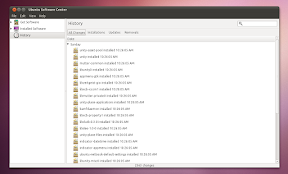
- A history tab shows what applications you've installed, removed or upgraded, day by day:

Ubuntu 10.10 maverick meerkat screenshots

- A feature called "Where is it" displays the menu entry where you can find the newly installed applications. Also, for applications which have some plugins available, these are displayed below the application in the Ubuntu Software Center:

Ubuntu 10.10 maverick meerkat screenshots

- The first paid application is available in Ubuntu Software Center in Ubuntu 10.10:

Ubuntu Software Center paid app

Yes, only one application for now - for testing purposes, but more are expected starting with Ubuntu 11.04 Natty Narwhal.

- Ubuntu Software Center now also handles .deb file installation (so when you double click a .deb file, it opens in Ubuntu Software Center).

Sound menu
Ubuntu 10.10 screenshots sound menu

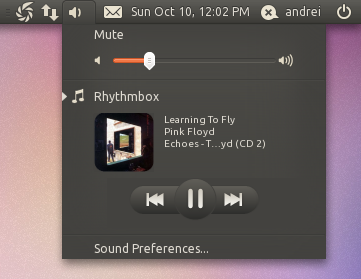
Ubuntu 10.10 Maverick Meerkat comes with a new sound menu which by default displays the currently playing song in Rhythmbox, the album art (if the respective plugin has been enabled in Rhythmbox) and controls for previews / next tracks as well as play / pause. Other music players will be able to take advantage of this new Sound Menu, like Banshee (already available through an extension), Amarok and so on.

Ubuntu Font Familiy as the default desktop font
Ubuntu 10.10 screenshots font

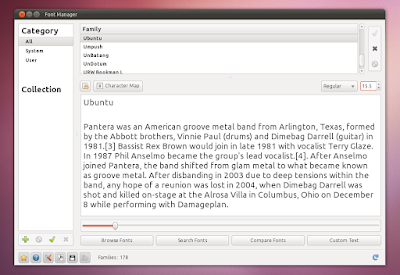
The Ubuntu Font Family, which has been in private beta for almost the whole Ubuntu 10.10 development has been made the default desktop font. The font is default for Application, Window title, and Desktop only and the size has been set to 11.

This change should be available in all the Ubuntu flavors: from Ubuntu 10.10 Netbook Edition to Kubuntu and so on.

F-Spot out, Shotwell in
Shotwell

F-Spot photo manager has been replaced in Ubuntu 10.10 Maverick Meerkat with Shotwell. Among Shotwell's features are tags and ratings support, basic editing like cropping, red-eye and color adjustments and publishing images to Facebook, Flickr and PicasaWeb.


Ubuntu One Ubuntu One has got lots of improvements, most under the hood, but there's one in particular that is worth mentioning: you can now stream music to your Android or iPhone. The applications for Andoid and iPhone are currently not available (they are in beta), but here is a screenshot thanks to Lifehacker:
Ubuntu One Andoid App


Light Themes (Ambiance and Radiance) There weren't major changes to the Ubuntu "Light" themes, but they did get some further polishing. Futher more, Radiance has been tweaked to look like it was initially intended: a lighter version of Ambiance, not a separate theme.

Ubuntu 10.10 Ambiance theme screenshot

(Ambiance - the default Ubuntu 10.10 theme)


Ubuntu 10.10 Radiance theme

Radiance

Wallpapers Like with every new Ubuntu release, Maverick Meerkat too got a new default wallpaper:

Ubuntu 10.10 default wallpaper

And of course, new community wallpapers:

ubuntu 10.10 screenshot


Revamped installer
Ubuntu 10.10 installer

The Ubuntu installer got a new look, new slideshow and along with these, some new features:

- It can now install mp3 playback support so you can have that from your first Ubuntu login. You'll need a working internet connection for that though:

Ubuntu 10.10 screenshots installer

- Once you select the partition where you want to install Ubuntu, the formating and installation begins. So the installation takes place while you complete the rest of the process like selecting your location or entering your password thus the time required to install Ubuntu has decreased by simply changing the order installer steps order:

Ubuntu 10.10 maverick meerkat screenshots

Here is a video (1 week old, but everything is the same in the final release) with the whole Ubuntu 10.10 Maverick Meerkat installation process I've recorded:


Ubuntu 10.10 Maverick Meerkat Netbook Edition (Unity) For Ubuntu 10.10 Maverick Meerkat Netbook Edition, everything is new compared to 10.04. Unity has replace the old Netbook interface and along with it, there are some other features designed to improve the usability on a netbook.

Unity comes with a launcher on the left side of the screen - it allows you to pin applications and it comes with some applets by default like a trash applet and a workspace switcher applet. It also has 2 quick access applets for the applications and files views (called Dash):


Ubuntu 10.10 netbook edition screenshot

(Unity launcher)


Unity workspaces

(Unity - workspaces)


Ubuntu 10.10 Unity interface

(Unity - applications pane)


Unity Ubuntu 10.10 files

(Unity - files pane (Dash))

The files and applications pane use Zeitgeist for displaying the recently used and most used items. The files are organized by type and date they were last accessed (as you can see in the screenshot above).

Clicking the Ubuntu logo in the top left corner will open the main application categories:

Ubuntu 10.10 Unity screenshot

Ubuntu 10.10 Netbook Edition also comes with an Applications Menu - the applications menu is now displayed on the top panel (which by the way does not support any kind of customization, you can't remove or add applets - and it's not like in 10.04 when the panel was locked, now the panel itself doesn't support any customizations) and is not displayed in the actual applications anymore (Mac OSX style):

Ubuntu 10.10 screenshots

This however does not work for some applications like Firefox, Thunderbird, OpenOffice and so on.

Also, the maximize applications titlebar is automatically removed and the window title along with the close, minimize and maximize buttons are also displayed on the top panel:

Ubuntu 10.10 netbook edition unity

All these are designed to provide more vertical space for netbooks.


You can't really get an idea on what Unity is from the screenshots, so I've recoded a video with Ubuntu Netbook Edition 10.10 Maverick Meerkat final:


(Video available in HTML 5 if you've enabled it on YouTube - watch it in HD!)


Multi touch out of the box
Ubuntu 10.10 multitouch

If you have a multi-touch capable device, expect an out-of-the-box touch experience that "just works" on Ubuntu 10.10 Maverick Meerkat. This is installed by default in Ubuntu 10.10 Maverick Meerkat Netbook Edition but you can install it on the desktop edition too (sudo apt-get install utouch).

Here is an old video (sorry, I don't have a multi-touch device to record a video myself) with this amazing feature - for an application which doesn't support multi-touch by default (Inkscape):


And of course, there are new versions for each application like Evolution 2.30.3 (even though Ubuntu 10.10 ships with GNOME 2.32.0), OpenOffice 3.2.1, Empathy 2.32.0 (with metacontacts), Gwibber 2.32.0.1 (with OAuth support for Twitter), PiTiVi (video editor) 0.13.5, Brasero 2.32.0 and so on. One note: Ubuntu 10.10 Maverick Meerkat has been released with Firefox 3.6 so we might not see an official way of installing Firefox 4.0 in this release.


Please note that there have been many more changes but I've only covered the most important ones or the changes I personally enjoy most in Ubuntu 10.10 Maverick Meerkat. For the whole thing, install Ubuntu 10.10 Maverick Meerkat yourself.

Download Ubuntu 10.10 Maverick Meerkat (or any 10.10 Ubuntu flavor)


Now, let's hear something from you too: did you upgrade to Maverick (Desktop / Netbook / Kubuntu or any other flavor)? And if so, how is everything working for you?

And that was it, we've covered it all. Well, almost. From the early Meerkat alpha to the final 10.10 (.10) version. If you want to follow the next Ubuntu version development (11.04 Natty Narwhal), do not forget to subscribe: RSS | Twitter | Facebook. More options in the top menu.
Source: http://www.webupd8.org/2010/10/ubuntu-1010-maverick-meerkat-has-been.html

What To Do After A Fresh Ubuntu 10.10 Install? Run These Commands! [WebUpd8]

In case you were wondering, there won't be a new Ubuntu Start script version, at least not for Ubuntu 10.10. There are many reasons for this but I'd rather not get into details.

To get you started with your fresh Ubuntu 10.10 Maverick Meerkat installation, I'd though I'd share the commands I use to install the basic stuff. For everything else there's Ubuntu Tweak or manual installation, however these following should get you started.

What To Do After A Fresh Ubuntu 10.10 Install? Run These Commands!
Software Sources

Important: before running the commands below, you need to enable the restricted, multiverse and partner repositories. To do this, open the Ubuntu Software Center, select Edit > Software Sources, and on the first tab (Ubuntu Software), check all the repositories. Then switch to the second tab (Other Software) and check the "Canonical Partners" repository.

1. Install Adobe Flash, Java, fonts, codecs and other restricted stuff (I don't use "ubuntu-restricted-extras" because it also installs some stuff I really don't need while it doesn't install a lot of the applications that I do need):

sudo apt-get install gstreamer0.10-ffmpeg gstreamer0.10-pitfdll gstreamer0.10-plugins-bad gstreamer0.10-plugins-bad-multiverse gstreamer0.10-plugins-ugly gstreamer0.10-plugins-ugly-multiverse gstreamer0.10-plugins-base gstreamer0.10-plugins-good libdvdnav4 libdvdread4 libmp4v2-0 libxine1-ffmpeg ffmpeg flashplugin-nonfree sun-java6-fonts rar unrar p7zip-full p7zip-rar unace unp zip unzip ttf-mscorefonts-installer ttf-liberation mencoder mplayer sun-java6-plugin
2. Medibuntu is not ready for Maverick yet, but you can still play encrypted DVDs. Simply run the following command:
sudo /usr/share/doc/libdvdread4/install-css.sh
3. If you occasionally build applications from source or make your own deb files, here are some basic packages you should install:
sudo apt-get install build-essential automake make checkinstall dpatch patchutils autotools-dev debhelper quilt fakeroot xutils lintian cmake dh-make libtool autoconf git git-core subversion bzr
4. The following applications should really be default in Ubuntu but anyway, install VLC, OpenShot, GIMP (removed from the default installation a few releases back), gThumb, Pidgin, Skype, Adobe Air, Wine (ok, these last 2 shouldn't be in a default install), aptitude (removed from the default installation starting with Maverick) and Chromium using the following command:
sudo apt-get install vlc mozilla-plugin-vlc openshot gimp gthumb pidgin skype adobeair wine aptitude chromium-browser

Disclaimer / notes: Like I said, this is just the basic stuff to install after a fresh Ubuntu 10.10 Maverick Meerkat installation and it includes a lot of non-free / restricted applications as well as some very popular non-default applications. If you'd find some applications which you've never heard of, it wouldn't be a "what to do immediately after installing ubuntu" post anymore but a regular post about new applications with a catchy title. Also, if I'd write about each and every application I use, it would probably be useless because not everybody uses what I like - instead simply browse around WebUpd8 for that. So this is a simple post about getting you started with a fresh Ubuntu 10.10 installation.


For a complete Ubuntu, you could use Linux Mint, Manhattan OS, Pinguy OS or mFatOS - everything installed by default - less hassle.


But let's hear it from you. What do you install or tweak after a new Ubuntu installation (or upgrade)?
Source: http://www.webupd8.org/2010/10/what-to-do-after-fresh-ubuntu-1010.html